Six simple steps. One project workspace, always ready.
Create a Project Desktop. Build the structure. Drag your assets in. Organize it your way. Switch instantly between projects. Stay focused. TBM turns this simple sequence into a workspace you can return to every day.
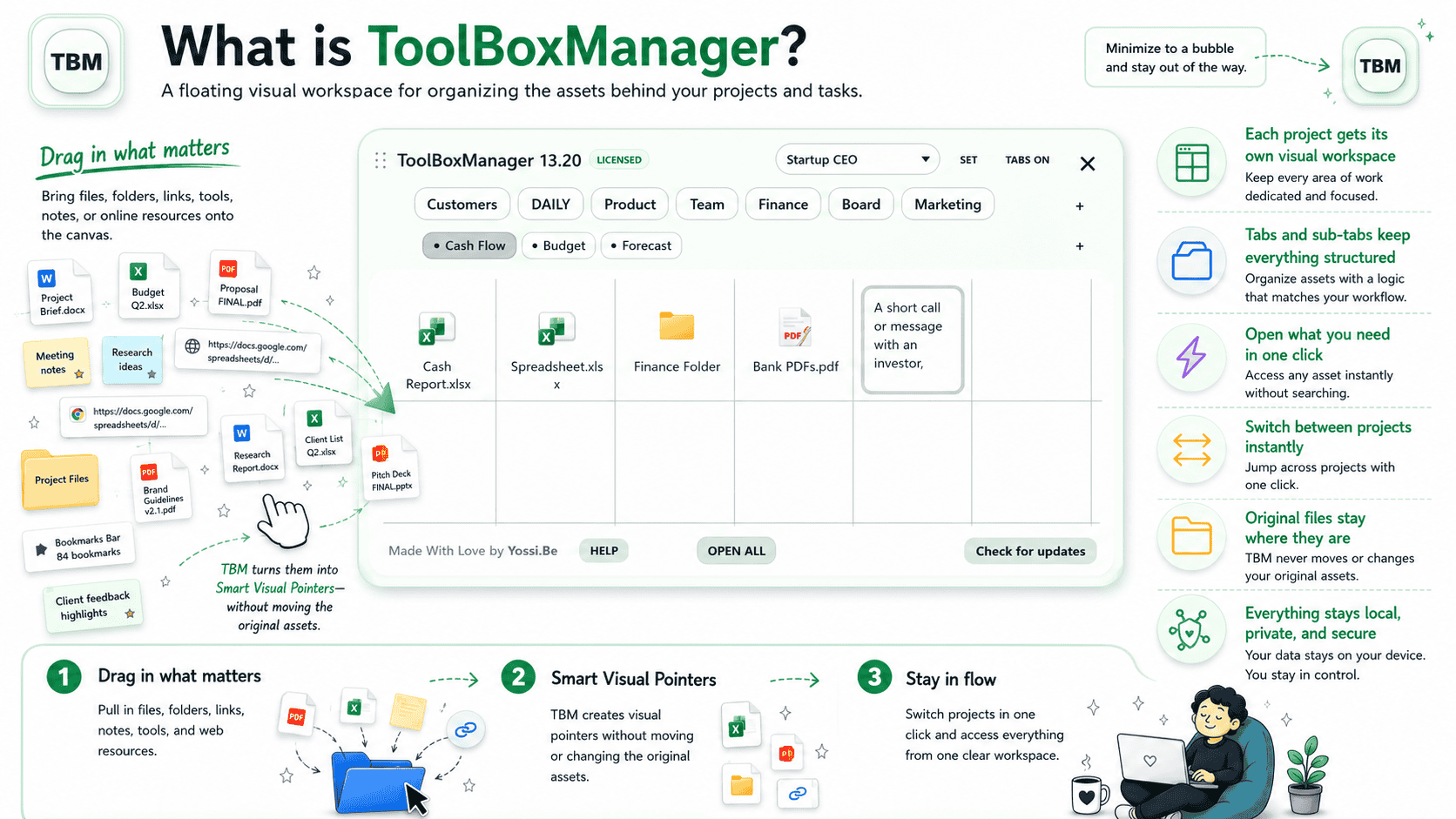
ToolBoxManager is a floating visual workspace for organizing the assets behind your projects and tasks.
Drag files, folders, links, tools, notes, or online resources onto the canvas, and TBM turns them into Smart Visual Pointers without moving or changing the original assets.
Use tabs and sub-tabs to keep every project logically structured, switch between projects with one click, and access every asset you need from one clear, local, private, and secure workspace.
The whole method
Create. Structure. Drag. Organize. Switch. Focus.
Six simple moves take the project from scattered pieces to a clear daily workspace.
01Create a DesktopGive the project one home.
02Build your structureMain Tabs and Sub-Tabs.
03Drag your assets inComputer or browser.
04Organize your wayDrag and reorder.
05Switch instantlyMove between project environments.
06Stay focusedMinimize to Bubble when you work.
Six steps, shown in the product
Each step removes one piece of friction.
The six steps are the main story. Everything else sits below as extra power.
01 / Create a Desktop
Give the project one visual home.
Create a dedicated Desktop for the project so its resources stop competing with unrelated work.
Separate projects, roles, clients, or initiatives
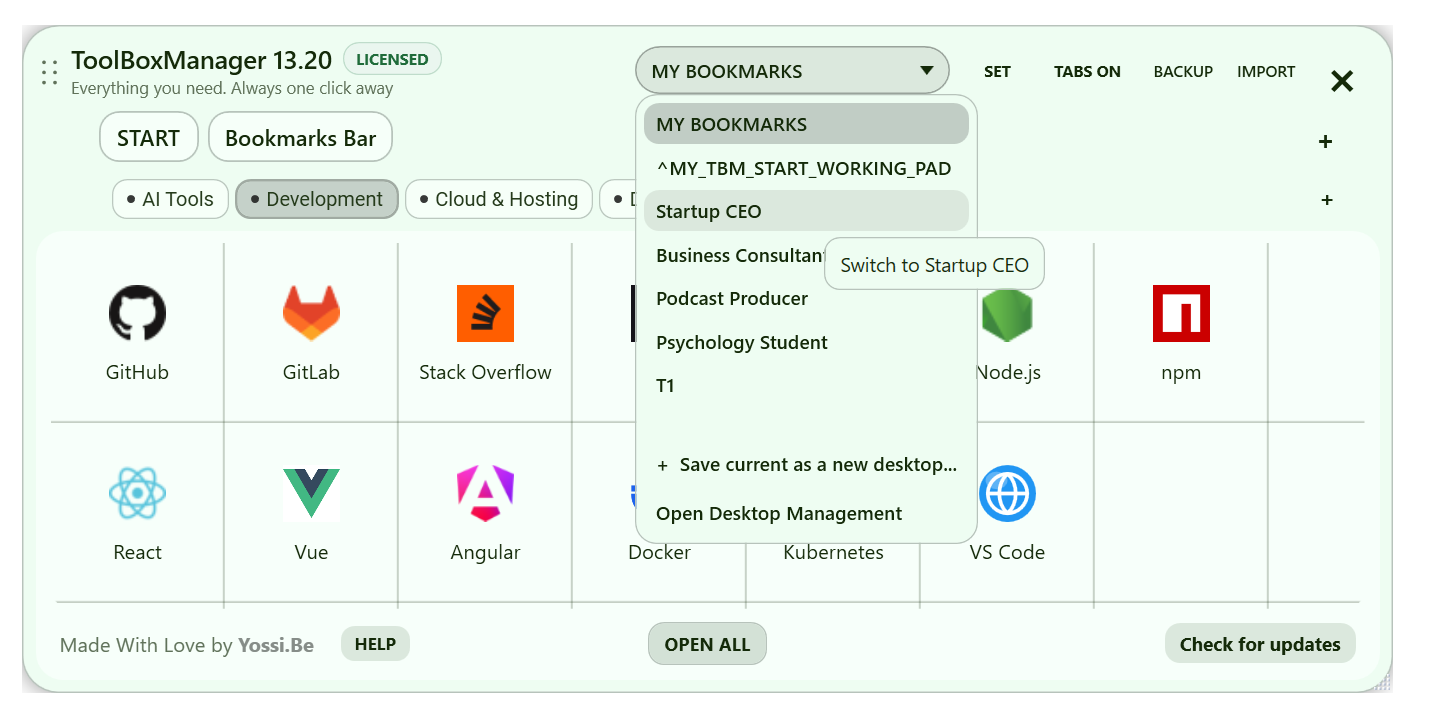
Use the rapid-access Desktop switcher
TBM supports up to 25 distinct project Desktops
02 / Build your structure
Use Main Tabs and Sub-Tabs to map the real work.
Create a simple hierarchy inside each Desktop so departments, categories, phases, or workstreams have a clear place.
Desktop → Main Tabs → Sub-Tabs → Items
Match the structure to the way the project actually works
Reorder and adjust as the project evolves
03 / Drag your assets in
Drag the project in. Leave the originals alone.
Drag files, folders, applications, web links, search results, and selected text from your computer or browser. TBM creates Smart Visual Pointers instead of moving the originals.
Free drag-and-drop from File Explorer, desktop, or browser
Click any asset and it opens in its native app or normal destination
Remove the pointer without deleting the original
04 / Organize your way
Drag, reorder, and shape the workspace around you.
Once the assets are inside TBM, arrange them the way the project makes sense to you. The structure can keep changing as the work changes.
Reorder items by drag and drop
Keep frequently used assets close
Open the working set when the task begins
05 / Switch instantly
Move between project environments without mixing them.
Jump from one Desktop to another in one click. Each project keeps its own visual context, so switching work does not mean rebuilding the map.
Up to 25 project Desktops
Keep unrelated projects visually separated
Return to the project with its structure still intact
06 / Stay focused
Focus on the task, not the interface. Show what matters. Shrink what doesn’t.
Use Focus Mode to hide lower-priority tabs, then minimize the full workspace into a movable Bubble while you work.
Hide lower-priority tabs with TABS OFF ( FocusMode )
Resize the workspace by dragging its edges or corners
Minimize TBM to a Small, Medium, or Large Bubble
Restore the full workspace with one click
Features
One place for every project. Bring in files, web research and notes without moving the originals. Switch complete workspaces in one click, then shape each one your way.
A Workspace for Almost Anything
Client launch. Thesis. Product research. Trip. Weekly ops. Give each one a space that fits the work.
Create a Desktop for each project, client, role or area of life
Shape it with Main Tabs and Sub-Tabs that match the job
Drag the working material in and keep the whole project one click away
Manage Projects From One Control Center
A dedicated Desktop Management screen keeps the whole portfolio organized without crowding the workspace.
Create, rename, duplicate, reorder, hide or delete Desktops from one screen
Move complete Main Tab structures between projects as priorities change
Keep up to 25 project environments organized without mixing their context
Switch Projects in One Click
Leave Client A, jump to Research, come back later and find the full project context waiting.
Jump instantly between complete Desktops from the compact switcher
Each project keeps its own tabs, notes, links and working assets ready
Change context without rebuilding windows, folders or mental state
Bring In What Is Already on Your Computer
Drag what you need from across Windows. TBM gives it a place without changing where it lives.
Bring in files, folders, applications and shortcuts
Drop on the canvas or straight onto a Main Tab or Sub-Tab
Open originals from TBM in the native apps that already handle them
Pull the Web Into the Project
Pages, search results and useful passages become project material instead of browser clutter.
Drag pages and links directly from browsers or the address bar
Bring in one search result or several supported results as separate web items
Drag selected web text into a Note, with the source URL when available
Keep the Originals Where They Belong
Organize the project freely without reorganizing the computer underneath it.
Smart Visual Pointers reference the real file, folder, app or web source
Move and regroup project items without moving the originals
Remove a TBM item without deleting the underlying resource
Turn Research Into Working Memory
Keep notes, sources and ideas beside the task so collected material is ready to become action.
Create Notes directly or turn selected text into a Note on the Fly
Drag or paste new text into Notes as the project develops
Use formatting, symbols and markers to surface what matters at a glance
Launch the Work, Not the Setup
Open the deck, spreadsheet, research links, folder and tools together and start where the work begins.
Open one asset, a selected group or the whole active working set
Shift multi-select keeps grouped actions fast and deliberate
Large launches ask for confirmation before anything opens
Dial the Noise Down
Choose how much of the project you want on screen. The rest stays available without demanding attention.
Show exactly the number of Main Tabs you want, from 1 to 35
Use Focus Grid to keep spatial orientation clear
Drop TBM into a Bubble and keep it one click away with Always on Top
Make It Feel Like Your Workspace
Size it, style it, simplify it. TBM can be compact, spacious, bright, dark or unmistakably yours.
Resize the workspace and Bubble, with size and placement remembered
Tune colors, typography, tabs, icon sizes and visual intensity
Save personal designs and use Dark Mode independently whenever you want
Start New Projects Already Ahead
Reuse proven structure and useful sources instead of rebuilding the same scaffolding every time.
Import Main Tab and Sub-Tab layouts from CSV with safe merge
Browse more than 1,500 curated website rows organized by topic
Import browser bookmarks with folder-aware organization
Private by Design. Built for Real Work.
Built by an experienced team around fail-safe thinking, relentless optimization and a local-first approach to privacy.
Project organization stays local while source files and linked assets stay in place
Run as a portable self-contained Windows app with no traditional installer
Back up the complete workspace, then restore or merge safely when plans change
Native Windows appReal desktop operation
PortableNo installation required
No Registry changesYour system stays untouched
Original assets stay putTBM stores visual pointers
Get ToolBoxManager
Put the six-step flow to work every day.
Create the Desktop, build its structure, drag in the assets, organize them, switch away, return, and finish in Focus Mode. ToolBoxManager keeps the entire project context ready when you come back.
One-time purchase: $47Use on up to 2 active computers15-day refund period
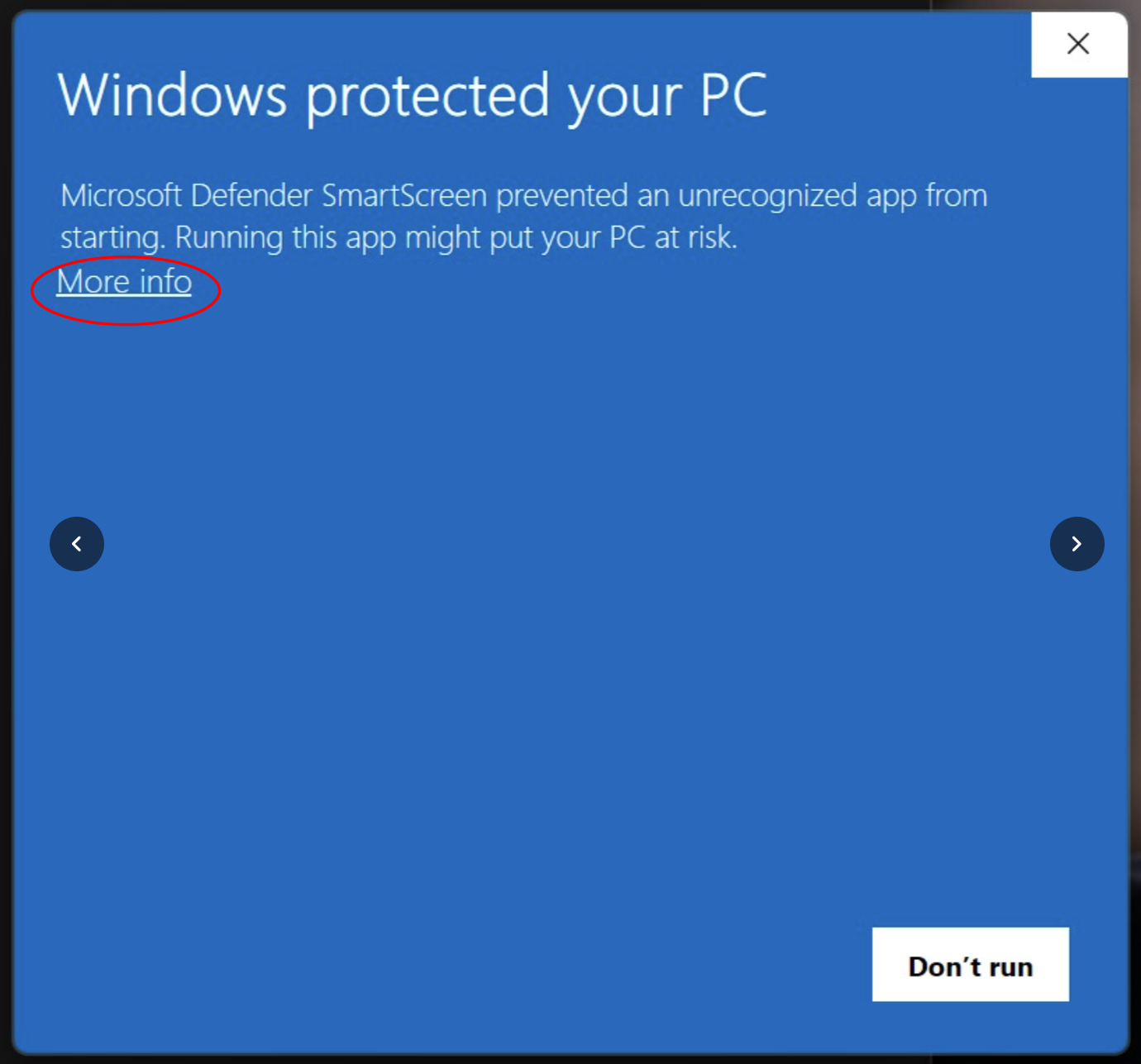
Windows shows “Windows protected your PC.” What should I do?+
Microsoft Defender SmartScreen sometimes shows this standard reputation warning when you first open a newly downloaded or unfamiliar app. First make sure your ToolBoxManager copy came from the official toolboxmanager.com website. On the warning shown below, click More info, check the application information, then choose Run anyway only if it is the expected official download. The warning is common on first launch, but Windows may show it again in some circumstances. If the file came from another source or the alert looks different, do not bypass it.
The standard Windows warning. Select More info only after checking the download source.Can I try ToolBoxManager before buying?+
Yes. If you would like to experience ToolBoxManager before purchasing, email [email protected] and request access to the LITE edition. We will help you get started.
Can I pay with cryptocurrency?+
For a cryptocurrency purchase, please contact [email protected] directly. We will explain the available payment arrangements before you proceed.
Can I purchase multiple ToolBoxManager licenses for my team or business?+
Yes. If you need multiple licenses for your team, business, or several users, email [email protected]. We will help you arrange a tailored licensing solution that fits your needs, with fair pricing.
Can I get a discount?+
ToolBoxManager is a premium, purpose-built productivity application developed through extensive design, engineering and refinement. Instead of a recurring subscription, we offer a single, competitively priced payment with ongoing product updates. We have already priced it well below what we believe its distinctive capabilities and long-term value justify, so we do not routinely offer additional discounts.
Who is ToolBoxManager for?+
ToolBoxManager is built for people whose work is spread across files, folders, apps, links, research, and notes. That can mean a CEO moving between initiatives, a project manager running several workstreams, a consultant or researcher collecting sources, a student building a thesis, a creator preparing a launch, or people with ADHD at any age who benefit from visible structure and fewer context switches. If you regularly leave one project and need to re-enter another without rebuilding the mental map, TBM is designed for that moment.
How many computers can I use with one license?+
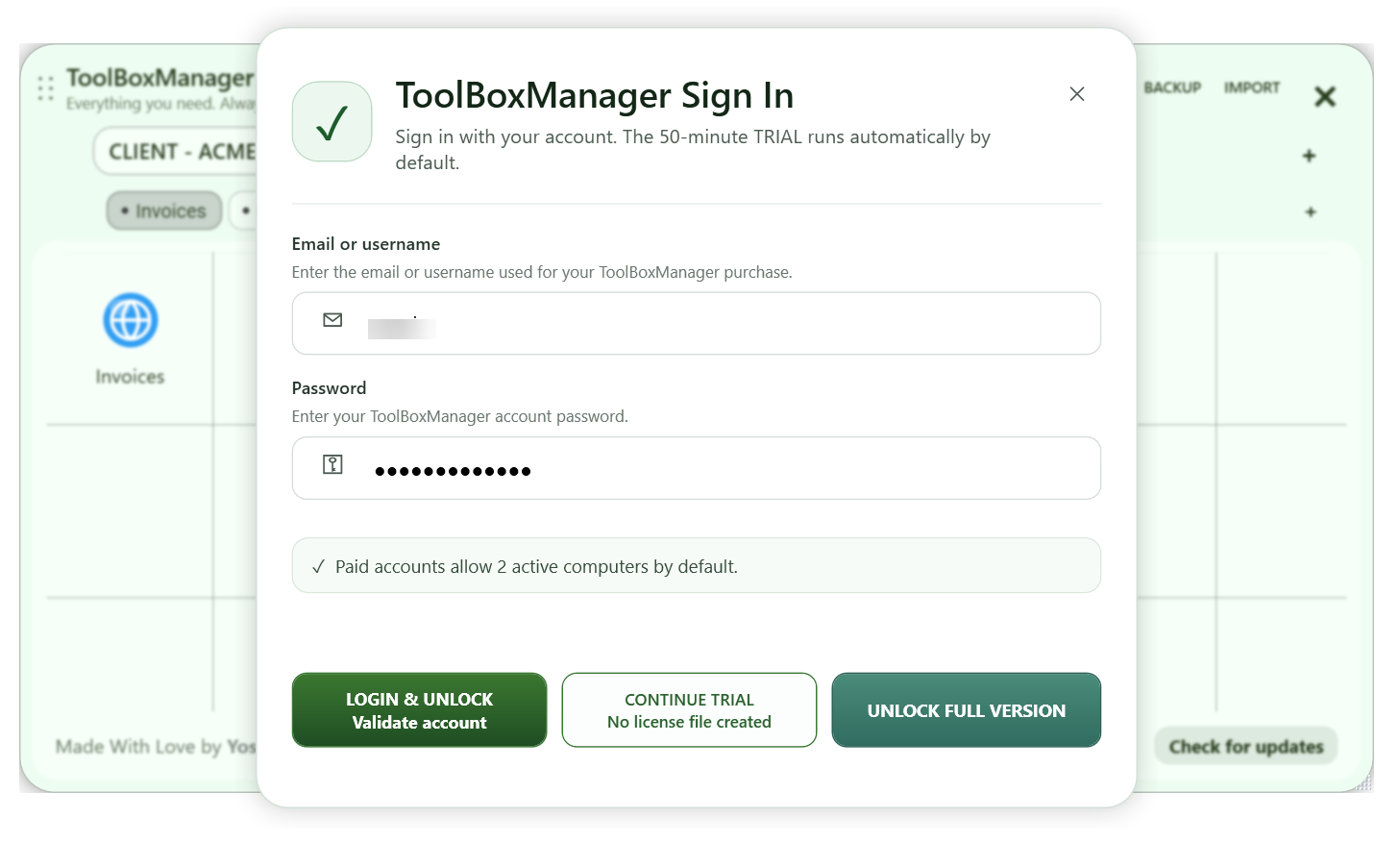
One license supports up to two active computers at the same time. The license is floating and self-managed: use Settings → License and Devices to review active computers and release or replace a device when you move to another machine.
Which operating systems does ToolBoxManager support?+
ToolBoxManager is currently built specifically for Microsoft Windows 11. It is a native Windows application optimized for fast response, low CPU and memory use, and portable operation without a traditional installer. A parallel Apple/macOS edition is a future ambition, not a currently available version.
Does TBM move or copy my original files?+
No. TBM creates Smart Visual Pointers to files, folders, applications, and web resources. Removing a pointer from TBM does not delete the original asset.
What is the difference between setup and daily use?+
Setup means creating the project Desktop, adding its tab structure, and bringing in the relevant materials. Daily use means entering the project, launching the working set, adding new information, switching projects, and returning without rebuilding context.
Can I open several assets together?+
Yes. OPEN ALL launches the assets in the active Sub-Tab. You can also select a specific group and open only that selection.
Can I keep different projects separate?+
Yes. TBM supports up to 25 distinct Desktops through its rapid-access switcher. Each Desktop keeps its own project structure and visual pointers.
How does TBM help reduce visual clutter?+
Focus Mode can hide lower-priority tabs, and the full workspace can minimize into a movable Bubble in Small, Medium, or Large size.
Does TBM require installation?+
No. The current product documentation describes TBM as a standalone native and portable Windows executable that does not modify the Windows Registry.
How does ToolBoxManager protect my private workspace data?+
ToolBoxManager is designed around local workspace data. Your workspace structure, notes, and Smart Visual Pointers stay on your own Windows PC rather than being uploaded to a ToolBoxManager cloud workspace. That means there is no central TBM cloud workspace containing your project data for a remote attacker to target, while your original files remain wherever you already keep them. As with any local software, overall security still depends on your Windows account, device security, backups, and the security of the original files and services you use.
Does ToolBoxManager support multiple monitors?+
Yes. ToolBoxManager is designed to work naturally in complex Windows 11 multi-monitor environments. You can keep TBM available on one display while working with browsers, folders, documents, and applications across your other monitors, and move the TBM window between displays as part of the same workspace. It is well suited to users who manage several tools and projects at the same time.
Is ToolBoxManager a subscription, and are future updates included?+
ToolBoxManager is a one-time $47 purchase, not a subscription. Your license includes future ToolBoxManager version updates and newly released features for the lifetime of the product, while ToolBoxManager remains actively developed and maintained. There is no recurring subscription fee for the license you purchase.
From chaos to clarity
Stop rebuilding the project. Start from where the work actually lives.
Disclaimer: Please note that this product does not provide any guarantee of income or success. The results achieved by the product owner or any other individuals mentioned are not indicative of future success or earnings. This website is not affiliated with Facebook or any of its associated entities. Once you navigate away from Facebook, the responsibility for the content and its usage lies solely with the user. All content on this website, including but not limited to text, images, and multimedia, is protected by copyright law and the Digital Millennium Copyright Act. Unauthorized copying, duplication, modification, or theft, whether intentional or unintentional, is strictly prohibited. Violators will be prosecuted to the fullest extent of the law.
We want to clarify that JVZoo serves as the retailer for the products featured on this site. JVZoo® is a registered trademark of BBC Systems Inc., a Florida corporation located at 1809 E. Broadway Street, Suite 125, Oviedo, FL 32765, USA, and is used with permission. The role of JVZoo as a retailer does not constitute an endorsement, approval, or review of these products or any claims, statements, or opinions used in their promotion.